
User Guide
IPSec VPN (Inseego Connect)
You can create IPSec VPN tunnels using Inseego Connect.
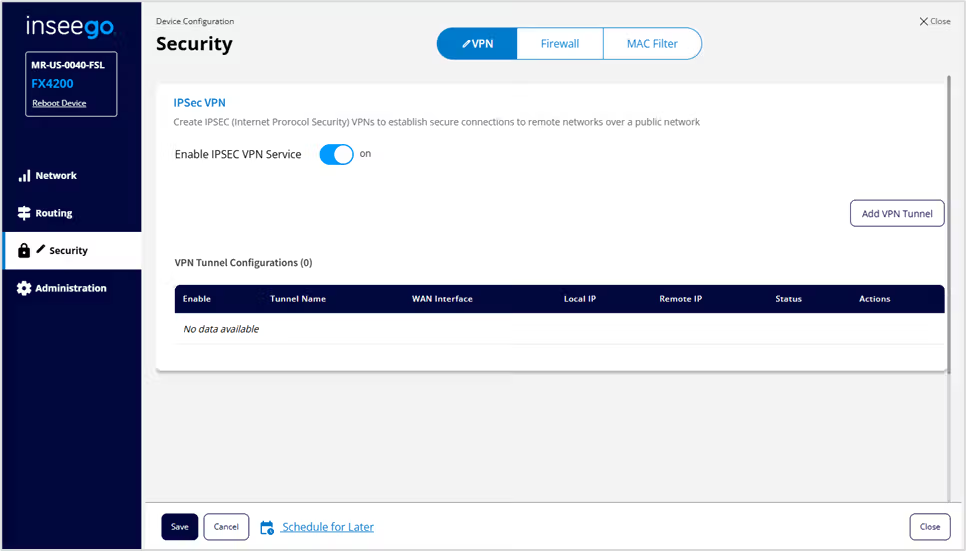
Move the Enable IPSEC VPN Service slider to on to enable IPSec VPN service.
When IPSec VPN service is enabled, established tunnel information displays. You can edit or delete existing tunnels.
Click Add VPN Tunnel to add a new VPN tunnel. The Add VPN Tunnel Dialog appears.
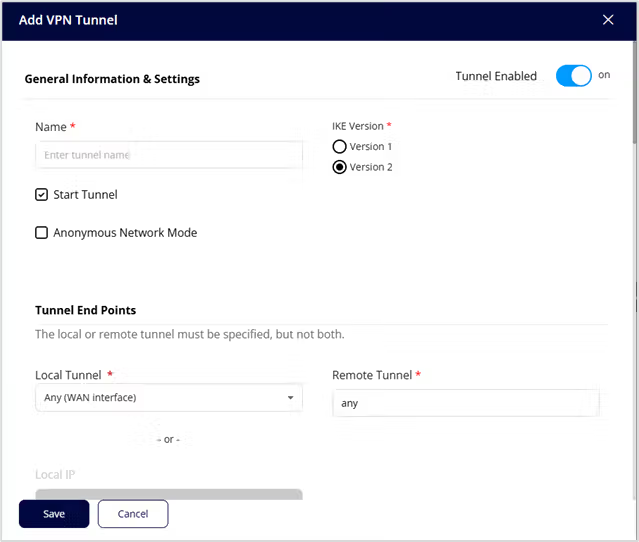
General Information & Settings
Name — Enter a unique name to identify this VPN.
IKE Version — Choose an Internet Key Exchange (IKE) version. Version 1 is older. Version 2 (default) uses fewer messages, better supports network switching, and handles NAT-T natively.
Start Tunnel — When selected, the tunnel starts automatically upon start up. When not selected, you must start the tunnel manually.
Anonymous Network Mode — When selected, remote devices with valid credentials can connect without providing network details. This allows for site-to-site or remote access VPNs where endpoints are not fixed by a static IP address.
Tunnel End Points
Local Tunnel – Select an option from the dropdown:
- Any (WAN interface): Allows the use of any WAN interface for the local tunnel.
- IP Address or FQDN: Enter the IP Address or Fully Qualified Domain Name (FQDN) in the Local IP text box.
- Specific WAN: Select a WAN type from the dropdown (WWAN or Ethernet WAN).
Remote Tunnel – Enter the IP address of the remote tunnel.
NOTE: This field is not available if Anonymous Network Mode is checked.
Local Network
Identity — Enter a unique name to identify the local point of the tunnel.
Authentication — Select a type of authentication from the drop-down list. You are prompted for further information based on your selection.
Subnet(s) — Enter the subnet(s) of the local device, for example: If your local IP is 192.168.0.100 and your subnet mask is 255.255.255.0 this should be 192.168.0.0/24. This should mirror what the subnet displays in the local device, for example: 192.168.0.0 / 255.255.255.0.
NOTE: The local device should be on a different subnet from remote, for example: If the Remote Subnet is 192.168.1.0/24, the Local Subnet might be 192.168.0.0/24. This is usually based off the DHCP settings of the devices.
Remote Network
Identity — Enter a unique name to identify the remote point of the tunnel.
Type of Tunnel — Select whether the tunnel is split or full. A split tunnel only encrypts specific traffic while allowing other traffic to bypass the tunnel, which offers better speed and local network access but less security. A full tunnel encrypts and routes all traffic through the VPN.
Authentication — Select a type of authentication from the drop-down list. You are prompted for further information based on your selection.
Subnet(s) — Enter the subnet(s) of the local device, for example: If your local IP is 192.168.0.100 and your subnet mask is 255.255.255.0 this should be 192.168.0.0/24. This should mirror what the subnet displays in the local device, for example: 192.168.0.0 / 255.255.255.0.
NOTE: The local device should be on a different subnet from remote, for example: If the Remote Subnet is 192.168.1.0/24, the Local Subnet might be 192.168.0.0/24. This is usually based off the DHCP settings of the devices.
IKE Phase 1
Key Lifetime: The lifetime of the phase 1 key, in seconds.
Choose Security Options: Click NSA Suite B (128 bit), NSA Suite B (256 bit), or manually select desired items from each column. NOTE: Each phase should support at least one matching option in each column. For example, if IKE Phase 1 is configured to support Hash SHA2 512, SHA2 384, and SHA2 256, then at least one of those selections must be selected in IKE Phase 2 to be a common Hash.
IKE Phase 2
Key Lifetime: The lifetime of the phase 2 key, in seconds.
Choose Security Options: Click NSA Suite B (128 bit), NSA Suite B (256 bit), or manually select desired items from each column. NOTE: Each phase should support at least one matching option in each column. For example, if IKE Phase 1 is configured to support Hash SHA2 512, SHA2 384, and SHA2 256, then at least one of those selections must be selected in IKE Phase 2 to be a common Hash.
Dead Peer Detection (DPD)
Dead Peer Detection (DPD) is a keep-alive method that ensures the tunnel is up and takes action if it is not able to reach the remote side of the tunnel, depending on what DPD action you select. You can use the default values, if desired.
DPD Enabled: Use the slider to enable DPD.
Action: Use the drop-down to select a DPD action.
Delay (Sec): The number of seconds between DPD packets.
Timeout (Sec): The number of seconds the router will allow an IPSec session to be idle before beginning to send DPD packets to the peer machine.
Click Save. The new VPN tunnel is displayed.
If you want changes to go into effect at a later time, check the Schedule for Later and select a date and time from the calendar.