
User Guide
Connecting devices to your MiFi
With the MiFi PRO M4, Wi-Fi devices and wired devices can connect simultaneously.
Connecting devices wirelessly
Your MiFi has two Wi-Fi networks, primary and guest, and lets you connect up to 50 Wi-Fi capable devices. For added security, share your guest network instead of your primary network. The guest network is off by default. You can turn it on from either the MiFi touchscreen or the admin web UI.
To connect devices to your MiFi:
1. Turn on the device you want to connect. The MiFi broadcasts its own wireless network and name.
2. On the device, open the list of available Wi-Fi networks. Select the MiFi primary or guest network and enter the password. Once connected to the Internet, the MiFi Home screen displays the connected device.
NOTE: You can view or change MiFi settings on the MiFi touchscreen or by connecting to the admin web UI from the primary network at http://192.168.1.1, my.inseego, or my.mifi.
Connecting devices with USB
You can tether to a device using the USB-C port:
1. Connect the USB-C cable into the USB port on your MiFi.
2. Connect the other end of the cable into the device you wish to connect. The USB Connection Options touchscreen appears.
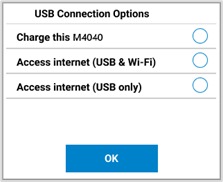
3. Select Access internet (USB & Wi-Fi), or Access internet (USB only) and tap OK.
NOTE: The MiFi charges when connected via USB.
Connecting devices with Ethernet
You can connect wired devices such as laptops, printers, and gaming consoles via Ethernet:
1. Plug one end of an Ethernet cable into the 1 Gbps RJ45 Ethernet port on your MiFi.
2. Plug the other end of the cable into the Ethernet port of the device you wish to connect.
Devices plugged into the MiFi via Ethernet have direct access to the internet.