
User Guide
Software Versions
Software updates are delivered to your MIFI automatically over the mobile network. This section displays current software version information, software update history, and allows you to check for new software updates for your MiFi.
NOTE: You can opt out of automatic software updates in Inseego Connect (Configure > Administration > Software).
If your MiFi is used on a private APN or cellular network, or if access is limited to specific sites, you must include the following URL in the access list so that automatic software updates can be delivered and you can check for updates: https://fota.production.nvtl.mifiupdates.com (TCP 443).
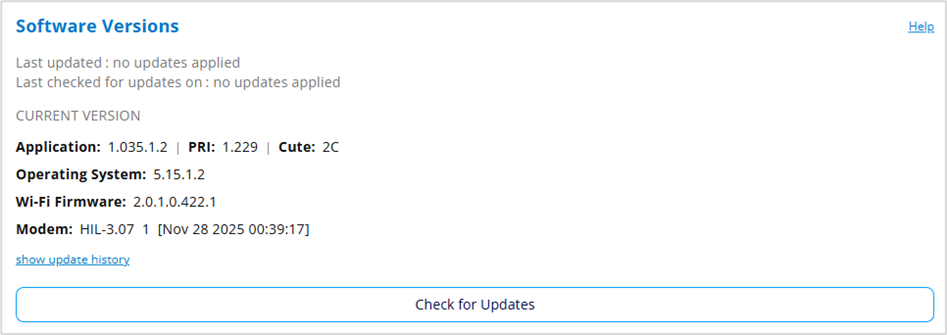
Last updated: The date and time the software was last updated.
Last checked for updates: The date and time the MiFi last checked to see if an update was available.
Current Version
Application: The configuration version currently applied to your MiFi.
PRI: The configuration version currently applied to your MiFi.
Cute: The cute version of the software currently installed on your MiFi.
Operating System: The version number for the Operating System and its components.
Wi-Fi Firmware: The version of Wi-Fi firmware currently installed.
Modem: The version of modem software currently installed.
Click show update history to view the history of previous software updates.
Check for Updates: Click this button to manually check for available software updates. If a new software update is available, it is automatically downloaded. You are prompted to install with a message that your MiFi will be unavailable for about 18 minutes during the update.
Notes on software updates
Software updates are delivered to your MIFI automatically over the mobile network. You can also initiate updates through the web UI.
Automatic updates (device initiated)
- The device looks for updates once every 24 hours.
- If an update is available, it is downloaded to the device.
- The update is installed on the device within 48 hours of being downloaded, between 2 - 4 AM local time, or immediately upon reboot.
User-initiated updates from the admin web UI
- Check for updates from the Administration > Software tab.
- If an update is available, it is downloaded to the device.
- Choose to install the update immediately, or it will be installed within 48 hours of being downloaded, between 2 - 4 AM local time (or immediately upon reboot).