
User Guide
Backup and Restore
Use this section to back up your current MiFi settings to a file on your computer, restore (upload) a previously saved configuration file, reset the MiFi to factory defaults, restart the MiFi, or turn it off.
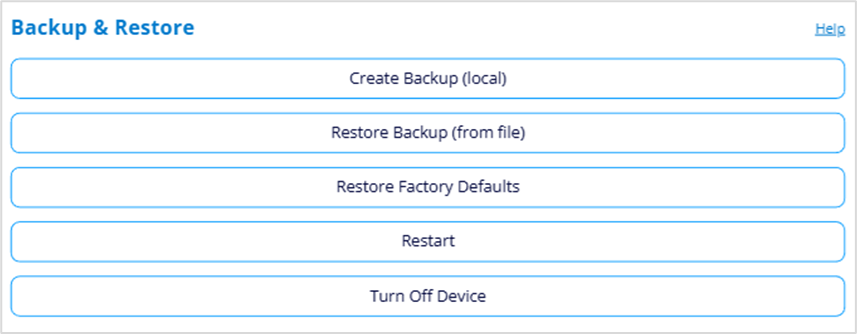
Creating a backup file
To create a local backup of current MiFi settings to a file on your computer:
1. Click the Create Backup (local) button.
2. Enter your admin password in the Admin Password field.
Tap Help > Admin Website on the Home touchscreen of your MiFi to find the admin password, or you can select Log In in the top-right corner of the web UI, then click Forgot Password, and answer the displayed security question. The current admin password is displayed.
NOTE: If you enter an incorrect password five times in a row, you will be locked out of the admin web UI. To unlock it, restart your MiFi and use the default admin password on the Home touchscreen Help > Admin Website .
3. Click the Create Backup File button. The file is automatically downloaded to the default Downloads folder on the device connected to the admin web UI. This configuration file contains all settings for your MiFi.
NOTE: The backup file cannot be edited or viewed on the downloaded system or on any other device. This file can only be restored for this model of MiFi, and settings can only be viewed or changed using the admin web UI.
Restoring from a backup file
CAUTION! Restoring settings (uploading a configuration file) changes ALL the existing settings to match the configuration file. This may change the current Wi-Fi settings, breaking all existing connections to the MiFi and disconnecting you from the admin web UI.
To restore system settings from a backup settings file:
1. Click the Restore Backup (from file) button.
2. Enter your admin password in the Admin Password field.
3. Drag and drop a backup settings file to restore or click upload to browse for the file.
NOTE: You can only restore a file that was created for this model of MiFi.
4. Click the Yes, Restore Settings button.
Restoring to factory defaults
CAUTION! This initiates a restart and may change the current Wi-Fi settings, breaking all existing connections to your MiFi and disconnecting you from the admin web UI.
To reset all settings to their factory default values, click the Restore Factory Defaults button, then confirm by clicking Yes, Restore Factory Defaults.
Restarting your MiFi
To restart your MiFi (turn it off and on again), click the Restart button: then confirm by clicking Yes, Reboot Device.
Turning off your MiFi
To turn off your MiFi, click the Turn Off Device button, then confirm by clicking Yes, Turn Off Device.