
User Guide
Device Preferences
Use this section to set power and sleep settings, configure options for the MiFi touchscreen, set USB modes, and turn battery preservation mode on or off.
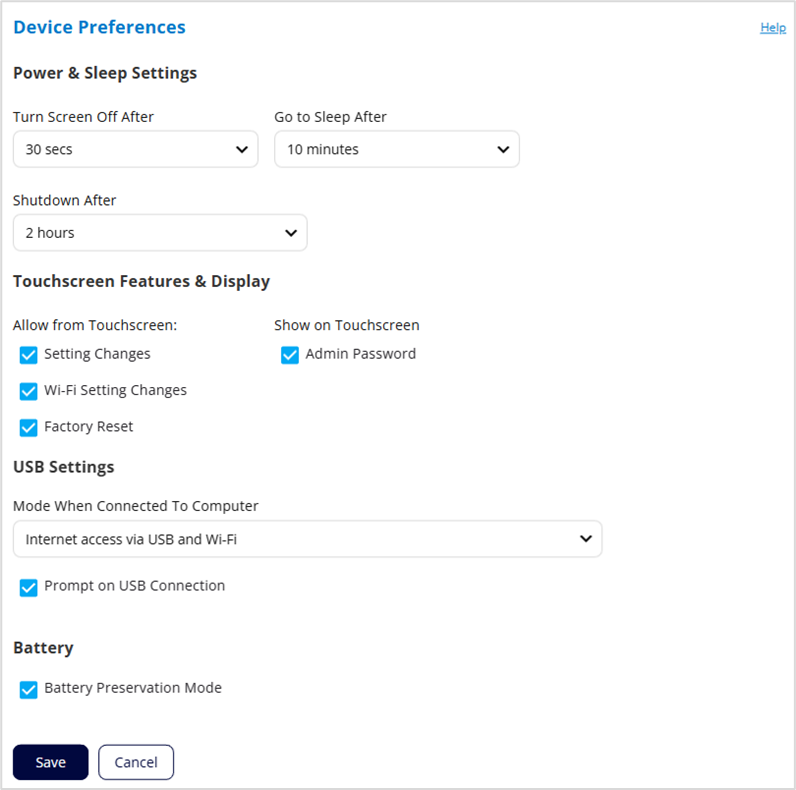
Power & Sleep Settings
Turn Screen Off After: Use the drop-down list to select how long you want the MiFi to be inactive before the touchscreen turns off.
Go to Sleep After: Use the drop-down list to select how long you want the MiFi to be inactive before entering sleep mode. Sleep Mode occurs when there are no connected devices and no touchscreen activity for the set amount of time. When the MiFi is in Sleep Mode, modules go down and the Wi-Fi name is not visible to other devices. The MiFi does not enter Sleep Mode when charging.
NOTE: When your MiFi is in Sleep Mode, press and release the power button to wake it.
Shutdown After: Use the drop-down list to select how long you want the MiFi to be inactive before shutting down. If there are no connected devices and no touchscreen activity for this amount of time, the MiFi turns off.
NOTE: If the device has shut down, restart it by pressing and holding the power button for three seconds.
Touchscreen Features and Display
Allow from Touchscreen:
Setting Changes: When checked, settings can be configured on the MiFi touchscreen.
NOTE: This includes the ability to initiate Factory Reset, which resets all settings to factory default settings and disconnects all connected devices.
Wi-Fi Setting Changes: When checked Wi-Fi settings can be changed on the MiFi touchscreen.
Factory Reset: When checked, this allows factory reset from the MiFi touchscreen (Settings > Factory Reset). Factory reset resets all settings to factory default settings and disconnects all connected devices.
NOTE: If Setting Changes (above) is unchecked, Settings > Factory Reset is not available on the touchscreen, even when this box is checked.
Show on Touchscreen:
Admin Password: When checked, the password used to access the admin web UI is visible on the touchscreen by tapping Help > Admin Website or Menu > Settings > Advanced Settings.
USB Settings
Mode When Connected To Computer: Use the drop-down list to select the default type of connection you want for devices connecting to the MiFi USB port: USB charging, internet access via USB and Wi-Fi, or internet access via USB only.
NOTE: The MiFi also charges when connecting to access the internet.
Prompt on USB Connection: When checked, a prompt displays on the MiFi screen when a device connects via USB. The prompt allows selection of the USB mode of connection.
NOTE: A USB mode selection made on the MiFi touchscreen does not change the setting above. The setting above acts as a default, and the choice on the MiFi touchscreen sets the mode for the current USB session only.
Battery
Battery Preservation Mode: When checked, Battery Preservation Mode activates when your MiFi has charged for more than 16 hours straight. The battery level is allowed to fall to 70% and then your MiFi maintains a charge of 70% - 80% until you power cycle or remove it from charging.
Click Save.