
User Guide
Logging in
1. On a computer or browser-supported device connected to your MiFi, open any web browser and go to http://192.168.1.1, my.inseego, or my.mifi.
2. Tap Help > Admin Website on the Home touchscreen of your MiFi to view the admin password.
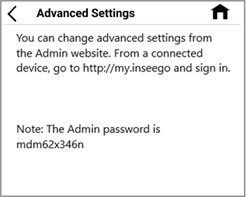
You are prompted to change the admin password upon first login. Change the password to something easy to remember and set up a security question.
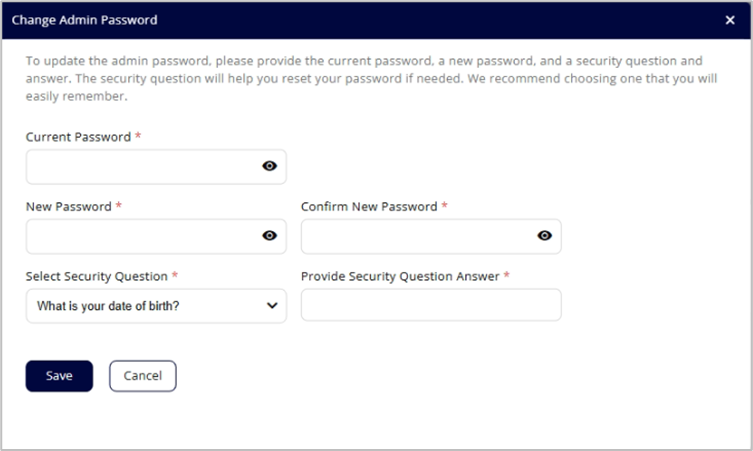
- Enter your current admin password, then enter a new password and confirm it.
NOTE: The new password must have a length between 14 and 32 characters and contain at least one special character or number.
- Select a security question from the dropdown and type an answer to the question.
NOTE: Answers are case-sensitive.
- Click Save.
The next time you sign in to the admin web UI, use the new admin password. If you cannot remember the password, click Forgot password on the Log In screen. After you correctly answer the security question you set up, the current password is displayed.
Hiding the admin password on the touchscreen
The admin password can be viewed on the MiFi touchscreen by tapping Help > Admin Website or Menu > Settings > Advanced Settings.
To hide the admin password:
- Navigate to Administration > Preferences in the web UI.
- In the Device Preferences section, look for Touchscreen Features & Display.
- Under Show on Touchscreen, uncheck the Admin password box.
- Click Save.