
User Guide
Primary Network
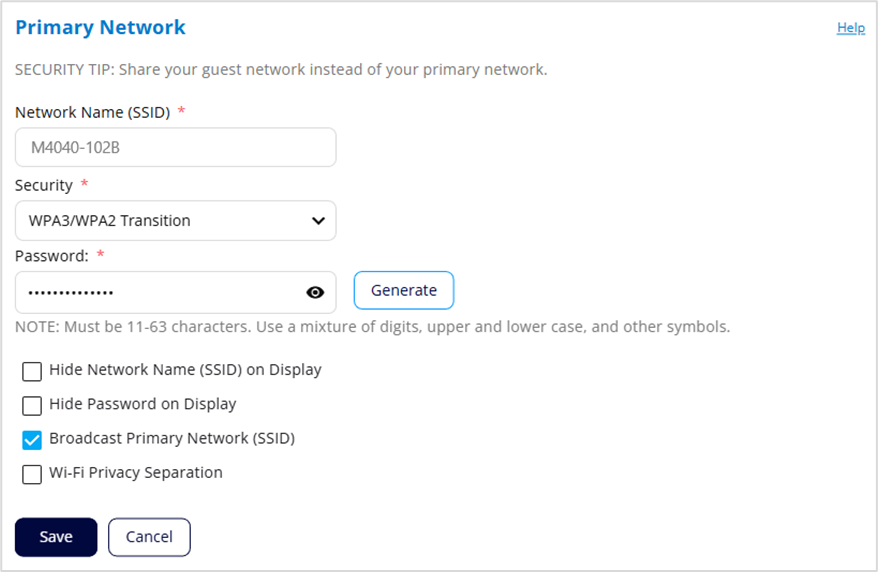
Use this section to change settings for your primary Wi-Fi network, including changing the name and password. Connected devices use the settings shown in this section to connect to the primary Wi-Fi network.
WARNING! If you change these settings, existing connected devices may lose their connection.
Network Name (SSID): To set up or change your primary network name, enter a name (up to 32 characters long).
Security: Select an option for Wi-Fi security:
- WPA3/WPA2 Transition is the most secure method of Wi-Fi Protected Access and should be used, if possible, for WPA2 and WPA3 compliant devices.
- WPA3 Only can be used for WPA3 devices.
- WPA2 Personal PSK (AES) can be used for WPA2 devices.
- None allows others to monitor your Wi-Fi traffic and use your data plan to access the internet.
Password: Enter a Wi-Fi password, or you can use the Generate button.
NOTE: The password must have a length of at least 11 characters and contain at least one letter, number, or special character. You can click the eye icon to view the password.
IMPORTANT: In order to securely set up your network, it is critical that you change the password from the default. Use a different password from your admin password to keep the device and your network secure.
Generate: This button inserts a strong random password in the Password field. You can click the eye icon to view the password.
Hide Network Name (SSID) on Display: This option is off by default, so that the primary Wi-Fi name can be seen on the touchscreen. If you choose to check this option, the primary network name will not be visible on the touchscreen (see Wi-Fi Name/Password).
Hide Password on Display: This option is off by default, so that the primary Wi-Fi network password can be seen on the touchscreen. If you choose to check this option, the primary network password will not be visible on the touchscreen (see Wi-Fi Name/Password).
Broadcast Primary Network (SSID): This option is checked by default, allowing the primary Wi-Fi network to be displayed in the list of available Wi-Fi networks on connecting devices. If you choose to uncheck this option, this network is not visible to connecting devices.
Wi-Fi Privacy Separation: Check this box to keep each connected device on this network isolated from all other connected devices. This provides additional security if some connected devices are unknown or not completely trusted.
NOTE: For normal operation, this should be unchecked.
Select Save.