
User Guide
APN Connection Profiles
In most configurations, the MIFI is used with a dynamic IP and SIM, and the Access Point Name (APN) is available from the network, for example: internet. However, if you are on a private network, you may need to configure connection profiles for your APN in this section for the network to communicate with the MiFi.
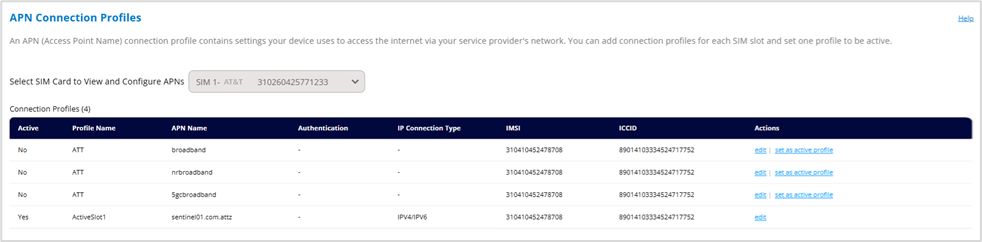
Select SIM Card to View and Configure APNs: Displays the SIM card for which you are configuring APN connection profiles.
Connection Profiles
This table lists all the APN connection profiles that have been defined. The number of profiles appears next to this title.
NOTE: Initially, the default APN profile is displayed. You cannot delete this profile, but you can edit it and/or add additional profiles.
Active: Indicates whether the connection profile is the active profile. You can change which profile is active by clicking set as active in the Actions column.
CAUTION! Changing the APN may cause a loss of data connectivity.
Profile Name: The name that identifies the connection profile.
APN Name: The access point name.
Authentication: The authentication method for the connection profile.
IP Connection Type: The IP connection type for the connection profile.
IMSI: The International Mobile Subscriber Identity (IMSI) for the SIM. This is a unique number, usually fifteen digits, that identifies a Global System for Mobile Communications (GSM) subscriber.
NOTE: This column is not visible if you have selected Use SIM PLMN to Match APN in APN Settings.
ICCID: The unique ID number assigned to the SIM.
NOTE: This column is not visible if you have selected Use SIM PLMN to Match APN in APN Settings.
PLMN: The Public Land Mobile Network (PLMN) for the connection profile.
NOTE: This column is only available if you have selected Use SIM PLMN to Match APN in APN Settings.
Actions:
- Click edit to edit a profile.
- Click delete to delete a profile.
- Click set as active to set a profile as the active profile.
CAUTION! Changing the APN may cause a loss of data connectivity.
Add Connection Profile: Click this button to add an additional APN connection profile.
NOTE: This button is not visible when APN Settings (above) are set to Automatically (Default).
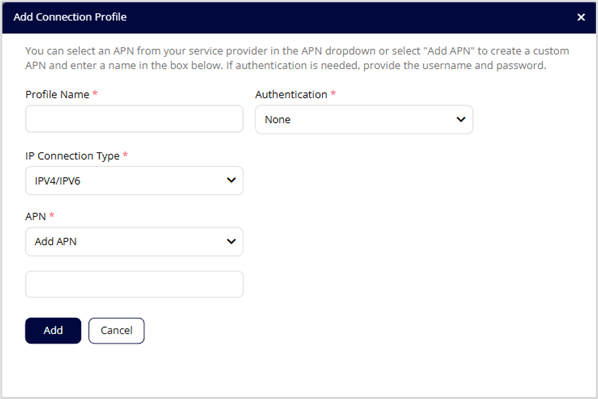
- Profile Name: Enter a name to identify this connection profile.
- IP Connection Type: Select an IP connection type from the dropdown (IPv4, IPv6, or IPv4/IPv6).
- APN: Select an APN supplied by your service provider from the dropdown or select Add APN and enter the APN for your private network in the text box that appears below.
- Authentication: Select the authentication method for your private network from the dropdown (None, PAP, CHAP, or PAP and CHAP).
- User Name: Enter the username for your private network.
NOTE: This option is not visible when Authentication is set to None.
- Password: Enter the password for your private network.
NOTE: This option is not visible when Authentication is set to None.
Click Add.